
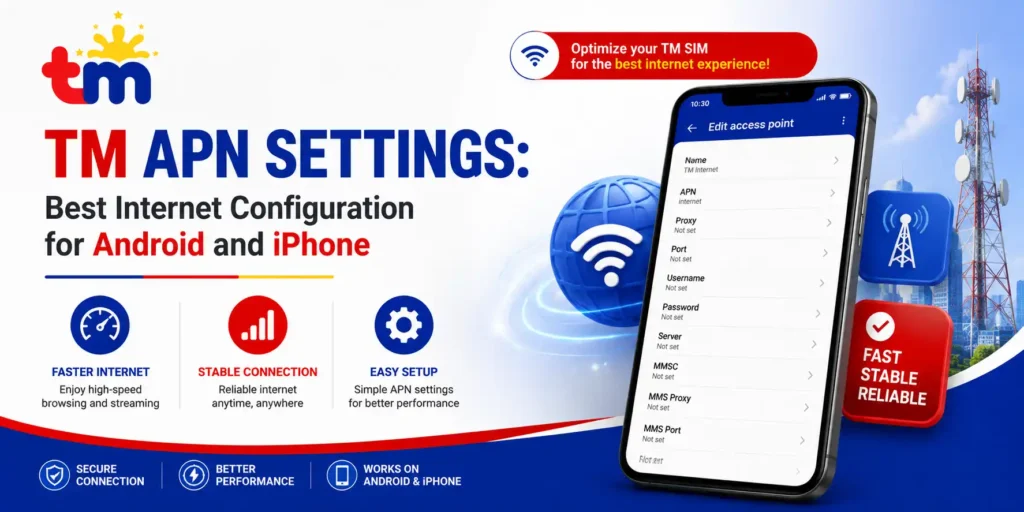
TM APN Settings: Best Internet Configuration for Android and iPhone
Many TM subscribers experience slow internet, failed connections, or missing mobile data even after activating their TM SIM card. This usually happens because the APN settings on their phone are missing, incorrect, or they got wiped after a reset or device switch. Configuring the correct TM APN settings restores your mobile data connection and ensures your phone runs on the fastest available network. This guide covers the official TM APN values, step-by-step setup for Android and iPhone, common problems, and fixes all in one place.
Looking for the TM SIM registration process? Visit our TM SIM registration guide for complete registration information.
What Are TM APN Settings and Why Do They Matter?
APN stands for Access Point Name. It is the gateway that connects your phone to your mobile carrier’s internet network. Without the correct APN, your phone cannot route data traffic through the Globe Telecom network that powers Touch Mobile.
Incorrect APN settings cause your mobile data to stop working entirely or run much slower than it should. They can also prevent your phone from connecting to LTE or 5G, even when the signal strength is strong. Configuring the right APN tells your phone exactly how to reach the TM network for data, MMS, and other services.
Official TM APN Settings
Use the values in the table below when setting up or restoring your TM APN on any Android or iPhone device. Enter each value exactly as shown and leave fields marked as Not Set completely blank.
| Setting | Value |
|---|---|
| Name | TM |
| APN | internet.globe.com.ph |
| Proxy | Not set |
| Port | Not set |
| Username | Not set |
| Password | Not set |
| MCC | 515 |
| MNC | 02 |
| Authentication Type | None |
| APN Type | default,supl |
| APN Protocol | IPv4/IPv6 |
| APN Roaming Protocol | IPv4/IPv6 |
| Bearer | Unspecified |
How to Configure TM APN Settings on Android?
Most Android phones do not auto-configure APN settings after inserting a new SIM, so you will need to enter the values manually. The steps below work on most Android devices, including Samsung, Xiaomi, OPPO, Vivo, and Realme.
Related Articles



Follow these steps to set up TM APN settings on Android:
Open Settings on your phone.
Go to Connections or Mobile Network, depending on your device.
Tap Access Point Names.
Tap the plus icon to create a new APN or select an existing TM entry to edit.
Enter all the official TM APN values from the table above exactly as shown.
Tap the menu icon and select Save.
Restart your mobile data or restart your phone to apply the changes.
If the APN option is greyed out or locked, insert only your TM SIM and remove any secondary SIM temporarily, then try again.
How to Configure TM APN Settings on iPhone?
iPhone devices running newer versions of iOS often configure APN settings automatically when you insert a TM SIM card. If your mobile data is still not working after inserting the SIM, follow the steps below to enter the values manually.
Follow these steps to set up TM APN settings on iPhone:
Open Settings on your iPhone.
Tap Cellular or Mobile Data depending on your iOS version.
Tap Cellular Data Network or Mobile Data Network.
Enter internet.globe.com.ph in the APN field under the Cellular Data section.
Leave all other fields blank unless specified in the official table.
Exit Settings and restart your device to apply the changes.
If you cannot find the Cellular Data Network option, go to Settings, tap General, then VPN and Device Management, and check if a carrier profile needs to be installed first.
When Should You Change Your TM APN Settings?
You need to update or reconfigure your TM APN settings in any of the following situations:
- Your TM mobile data suddenly stops working without any changes to your plan.
- Your internet is unusually slow, even with a strong LTE or 5G signal.
- You just inserted a new TM SIM card into your phone for the first time.
- You performed a factory reset, and your previous APN settings were wiped.
- You switched to a new phone and transferred your TM SIM.
- Your APN entry was accidentally deleted from the Access Point Names list.
Common TM APN Problems and How to Fix Them
Some TM subscribers encounter issues even after entering the correct APN values. Here are the most common problems and exactly how to fix each one.
Double-check every field in your APN settings against the official table above. Make sure no extra spaces were added and that the APN field reads exactly internet.globe.com.ph.
Restart your phone after saving and toggle mobile data off and on. If the problem continues, delete the existing APN entry and create a new one from scratch.
Slow data is often caused by your phone being set to a lower network mode, such as 3G or 2G. Go to Mobile Network Settings and change the preferred network type to LTE or 5G Auto to get the fastest available connection.
If the speed is still slow after switching network modes, check your signal bars and move to an area with stronger TM coverage before troubleshooting further.
This issue usually occurs on Android phones with a locked carrier profile or when two SIM cards are active at the same time. Remove the secondary SIM, restart the phone, and try saving the APN settings again with only the TM SIM inserted.
If the save option remains greyed out, check if your phone has a software update available. Some older software versions restrict manual APN editing until updated.
If your phone shows only 3G or H+ signal despite being in a covered area, your network mode setting may have changed after a reset or software update. Go to Mobile Network, tap Network Mode, and select LTE or 5G Auto to restore the faster connection.
Also, confirm that your current TM prepaid promo includes LTE or 5G data access, as some basic load packages only support 3G speeds.
Tips to Improve TM Mobile Data Speed
After configuring your TM APN settings, use these tips to get the best possible internet speed from your TM prepaid SIM:
- Restart your phone after any changes to APN or network settings.
- Set your network mode to LTE or 5G Auto under Mobile Network Settings.
- Update your phone software to the latest available version.
- Check your signal strength and move closer to a window or open area if bars are low.
- Reset network settings if speed issues persist after all other steps.
- Stay within Globe Telecom covered areas for consistent LTE and 5G performance.
- Subscribe to a TM promo that includes high-speed data allocation for better browsing speeds.
Frequently Asked Questions
Q1. What is the correct TM APN?
Ans. The correct APN for TM is internet.globe.com.ph. Enter this exactly in the APN field under your phone’s Access Point Names settings.
Q2. How do I reset TM APN settings?
Ans. In order to change the APN Settings, go to Settings, open Access Point Names, tap the menu icon, and select Reset to Default. Then re-enter the official TM APN values from the table in this guide.
Q3. Why is my TM internet not working?
Ans. The most common causes are incorrect APN settings, wrong network mode, or an inactive TM prepaid balance. You should check each one, starting with the APN value, and match against the official table above.
Q4. Can changing the APN improve internet speed?
Ans. Yes, using the correct TM APN settings ensures your phone connects to the right data gateway. An incorrect or missing APN forces your phone onto a slower or unstable connection.
Q5. Is TM APN the same as Globe APN?
Ans. Yes, TM and Globe share the same APN, which is internet.globe.com.ph because both networks operate under Globe Telecom. You can use the same settings for either network.
Q6. Does TM configure APN automatically?
Ans. Some phones configure the TM APN automatically when you insert the SIM card. If your mobile data does not work after inserting the SIM, enter the settings manually using the steps in this guide.
Final Thoughts
Setting up the correct TM APN settings is the fastest way to fix mobile data issues on any Android or iPhone device. Use internet.globe.com.ph as your APN, set your network mode to LTE or 5G Auto, and restart your phone after saving the changes. If problems continue, the troubleshooting section in this guide covers every common issue with a direct fix. Keep this guide bookmarked so you can resolve any future TM internet issues in minutes.