
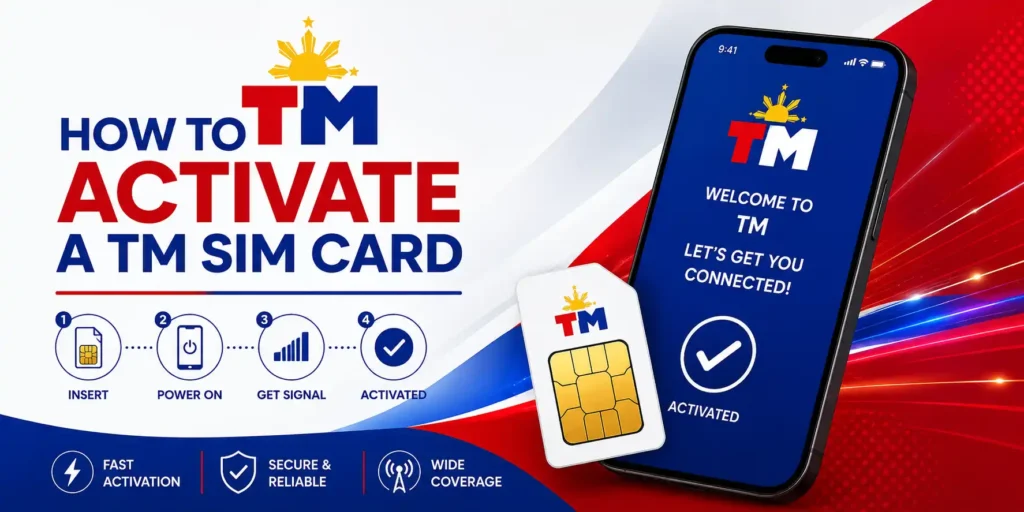
How to Activate a TM SIM Card: Registration and Activation
Many TM subscribers search for how to activate the TM SIM card and insert it while expecting it to work immediately, but the card stays inactive until you complete the mandatory SIM registration process first. Skipping or misunderstanding this step leaves you with no calls, no texts, and no mobile data on your Touch Mobile number. The good news is that TM SIM activation is automatic once Globe Telecom reviews and approves your registration, and this guide walks you through every method step by step.
Whether you register online through the official portal, through the GlobeOne App, or at a Globe Store in person, the process is completely free and requires no separate activation code. Read the full guide and follow the instructions below, and your TM SIM card will be fully active in under an hour.
What You Need Before You Activate Your TM SIM Card?
You must prepare the following items before you begin the TM SIM activation process, so you do not have to stop midway through registration. Having everything ready saves time and prevents your OTP from expiring before you finish.
How to Activate a TM SIM Card Online via the Official Portal?
The official SIM registration portal at simreg.globe.com.ph is the fastest online method to complete TM SIM activation from any browser. You do not need to download anything, and the entire process takes less than ten minutes if your documents are ready.
Follow these steps to register and activate your TM SIM online:
How to Activate a TM SIM Card Using the GlobeOne App?
The GlobeOne App lets you complete TM SIM registration directly from your smartphone and stores your registration history for future reference. It follows the same steps as the online portal, but keeps everything inside one account so you can access it anytime.
Related Articles



Follow these steps to activate your TM SIM through the GlobeOne App:
How to Activate a TM SIM Card Without Internet?
If you do not have access to the internet, you can complete TM SIM registration and activation in person at any Globe Store or TM store nationwide. This method is also the best option if you face repeated errors online or if you are assisting an elderly subscriber who is not comfortable using apps or portals.
Follow these steps to activate your TM SIM in-store:
How Long Does TM SIM Activation Take?
TM SIM activation typically completes within one hour after your registration is approved through the online portal or GlobeOne App. In-store registration may take a few hours longer due to processing time at the branch level.
How to Check If Your TM SIM Is Activated?
Your phone will display a signal with the TM network name after the activation is complete. Use any of the following methods to confirm your TM SIM activation was successful.
- Check that your signal bars show TM as the active network name.
- Send a test text message to any mobile number Philippines.
- Make a short phone call to confirm that the voice service is working.
- Open a webpage using mobile data to test your internet connection.
- Text SIMREG to 8080 and wait for a reply confirming your registered status.
- Dial *143# and check if the USSD menu loads without errors.
- Open the GlobeOne App and look for a Registered badge on your home screen.
Common Problems and Fixes
Some TM SIM cards do not activate smoothly and run into errors during or after the registration process. Here are the most common problems and how you can fix them.
No Signal on Your TM SIM
If your TM SIM card shows no signal after activation, restart your phone and toggle airplane mode on and off. If the problem continues, remove the SIM from the SIM tray, reseat it properly, and set your network mode to LTE, 3G, or 2G Auto under your mobile network settings.
OTP Not Received During Registration
Move to an area with better LTE signal Philippines’ coverage, and wait two to three minutes before requesting a new OTP. Remember that each OTP is valid for only 5 minutes, so enter it immediately once it arrives on your phone.
ID or Selfie Rejected During Upload
Retake your ID photo in bright and even lighting and make sure the file is under 4 MB with no blur or shadows. Remove glasses or hats, face a direct light source, and upload with no filters applied for the selfie.
TM SIM Still Not Working After 24 Hours
Text SIMREG to 8080 to check your registration status directly from your TM number. If the SIM remains inactive after that reply, visit any Globe Store or TM store with your valid ID for a manual status check, and note that SIM replacement Philippines costs approximately PHP 10 at the counter.
How to Set Up Mobile Data After TM SIM Activation?
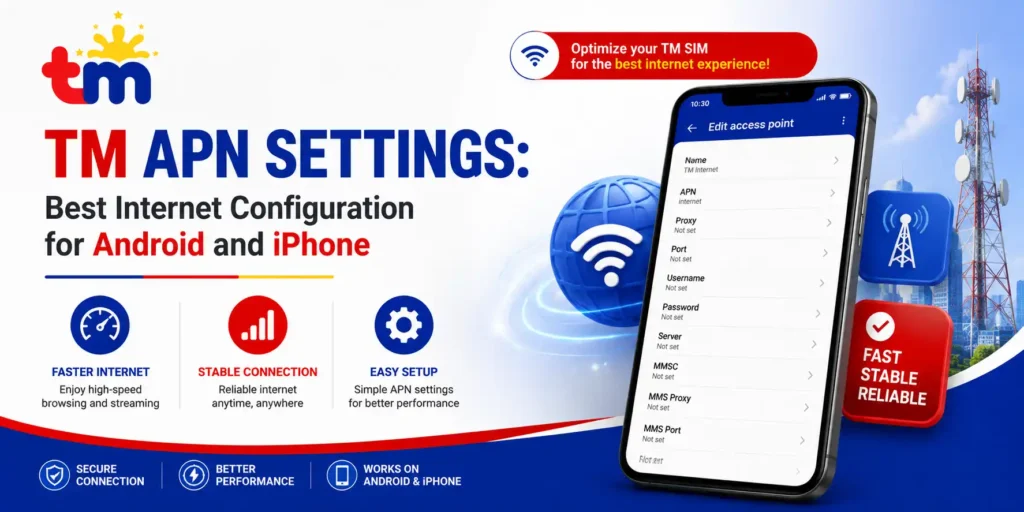
Some phones do not configure mobile data automatically after TM SIM activation, which means you have a signal but no internet connection. You can fix this by setting the APN settings Globe manually in your phone settings.
Follow these steps to set up your APN on Android:
TM SIM Activation Requirements Under the SIM Registration Act
Under Republic Act 11934, also known as the SIM Registration Act Philippines, all prepaid SIM users are required to register their SIM cards with their network provider before it is activated for use. Globe Telecom enforces this for all TM prepaid subscribers nationwide.
TM SIM Activation for Special Cases
Some TM subscribers require a different process to complete TM SIM activation depending on their situation. Here is what you need to know for special registration cases.
Activating a TM SIM for a Minor
A parent or legal guardian must complete the SIM registration on behalf of a subscriber under 18 years old. The guardian must upload their own valid ID and submit a signed consent form at any Globe Store or TM store to authorize registration.
Activating a TM SIM as a Foreign National
Foreign nationals can register a TM prepaid SIM using a valid passport as their primary ID document. The registration process follows the same steps through simreg.globe.com.ph or the GlobeOne App, with nationality and passport details filled in accurately.
Tips to Keep Your TM SIM Active After Activation
Keeping your TM SIM card active after registration requires regular use and load maintenance. Follow these tips to avoid service interruptions on your Touch Mobile number.
- Load your SIM regularly to maintain an active TM prepaid balance before the load expiry date.
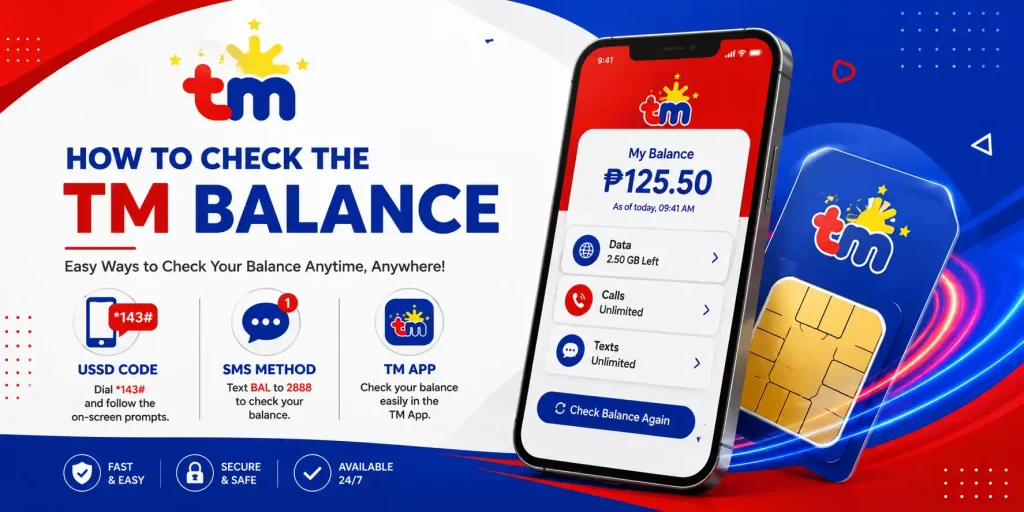
- Use *143# to check your account status and remaining balance at no cost.
- Subscribe to a promo through *143# or the GlobeOne App to keep data and call services running.
- Text SIMREG to 8080 periodically to verify your registered status remains active.
- Keep your valid ID on hand in case Globe Telecom requires re-verification in the future.
- Contact 211 free of charge if your SIM is suddenly deactivated or shows an error.
Frequently Asked Questions
Q1. How do I activate my TM SIM card?
Ans. Register your TM SIM at simreg.globe.com.ph, through the GlobeOne App, or at a Globe Store using a valid government ID. TM SIM activation happens automatically once Globe Telecom approves your registration without any separate steps required.
Q2. How do I know if my TM SIM is activated?
Ans. Check for a TM network signal on your phone and dial *143# to see if the menu loads. You can also text SIMREG to 8080 or open the GlobeOne App to confirm a Registered status on your account.
Q3. Why is my TM SIM card not working?
Ans. Your SIM may still be under review if it has been less than 24 hours since you submitted your registration. If it has been more than 24 hours, text SIMREG to 8080 or visit a Globe Store with your valid ID for a direct status check.
Conclusion
Completing the process of how to activate the TM SIM card is straightforward once you understand that registration and activation are part of a single automatic process with no separate activation code needed. You can register at simreg.globe.com.ph, through the GlobeOne App, or at any Globe Store, depending on your access and preference. If your SIM does not activate within 24 hours, text SIMREG to 8080 or visit a Globe Store for direct support from staff. You must keep your valid ID and reference number on hand throughout the process to resolve any issues quickly and get your TM SIM card working without delay.